Installing e16 on Debian
Enlightenment 16 - [e16]
e16 is an ultra-lightweight desktop environment from the early 2000s that, despite being a little old, remains fully functional and beautiful!
Unfortunately, the e16 package is no longer included in the Debian repositories. However, we can still install it, either by compiling it from source or by using prebuilt RPM packages.
Why use e16?
Why? There is no reason.
It's lightweight, beautiful, and highly customizable. It also comes with a huge selection of themes that will take you back to the early 2000s.
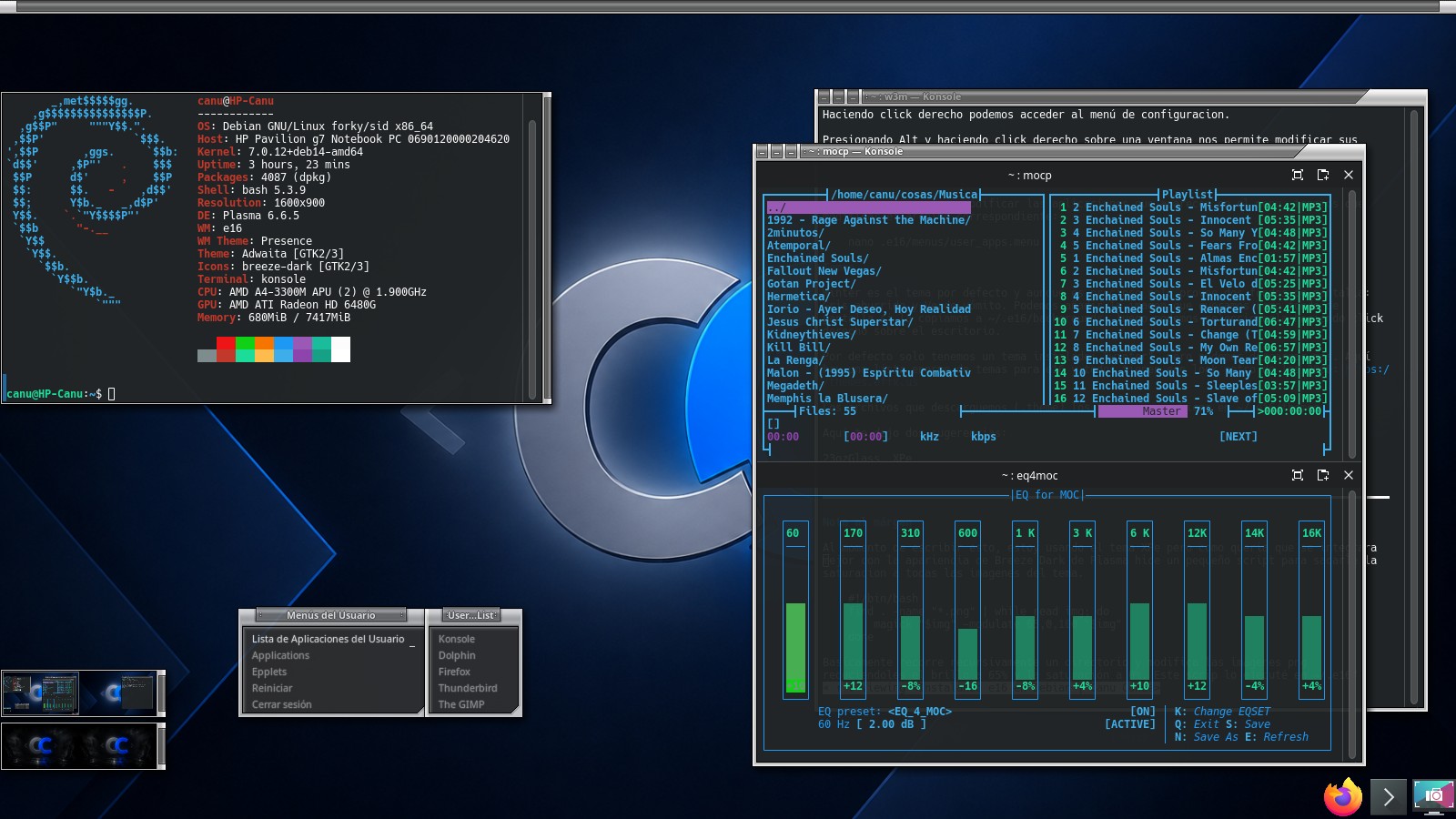
Installing e16
Option 1: Install from source
The recommended option: compile the binaries directly from the source code.
You can obtain the source code and installation instructions here: www.enlightenment.org
Install the required dependencies and then run:
./configure
make
sudo make install
Option 2: Downloading the binaries
If you don't want to spend time compiling or waste disk space on build dependencies, you can download precompiled binaries directly.
Before continuing, we need to install two things:
- ImLib2, which is a dependency of e16.
- Alien, which we will use to convert
.rpmpackages (Red Hat) into.debpackages (Debian).
sudo apt install libimlib2 alienNow download e16 from its repositories. Then convert the RPM package using Alien and install it.
sudo alien -d e16-1.0.31-1.fc42.x86_64.rpm
sudo dpkg -i e16_1.0.31-2_amd64.deb
You can now start the new desktop environment from your display manager.
You can also verify that e16 is installed correctly by launching it inside a window:
e16 -w 1200x720If you're old-school and still using xinit to start your session, simply add starte16 to your .xinitrc and run startx to launch the desktop.
Configuring the desktop
Like all minimalist desktop environments, e16 needs some configuration to make it behave exactly the way we want. All configuration files are located inside your home directory, and editing just a few text files is enough to customize everything.
cd ~/.e16/Applications can be launched by left-clicking anywhere on the desktop.
Right-clicking opens the configuration menu.
Holding Alt and right-clicking a window allows you to modify its properties.
Application menu
If you want to add or modify applications that appear in the menu, edit the following file:
nano ~/.e16/menus/user_apps.menuThemes
Winter is the default theme and, although it is beautiful, it only provides two wallpapers: Boring Gray and Vomit Green.
You can add any image you want as a wallpaper by copying it to ~/.e16/backgrounds, then selecting it through the desktop right-click menu.
By default, only the "winter" theme is installed, but you can download many more.
Here is a huge collection of e16 themes, all featuring that classic early-2000s retro look: https://themes.effx.us
Downloaded .etheme files should be placed in:
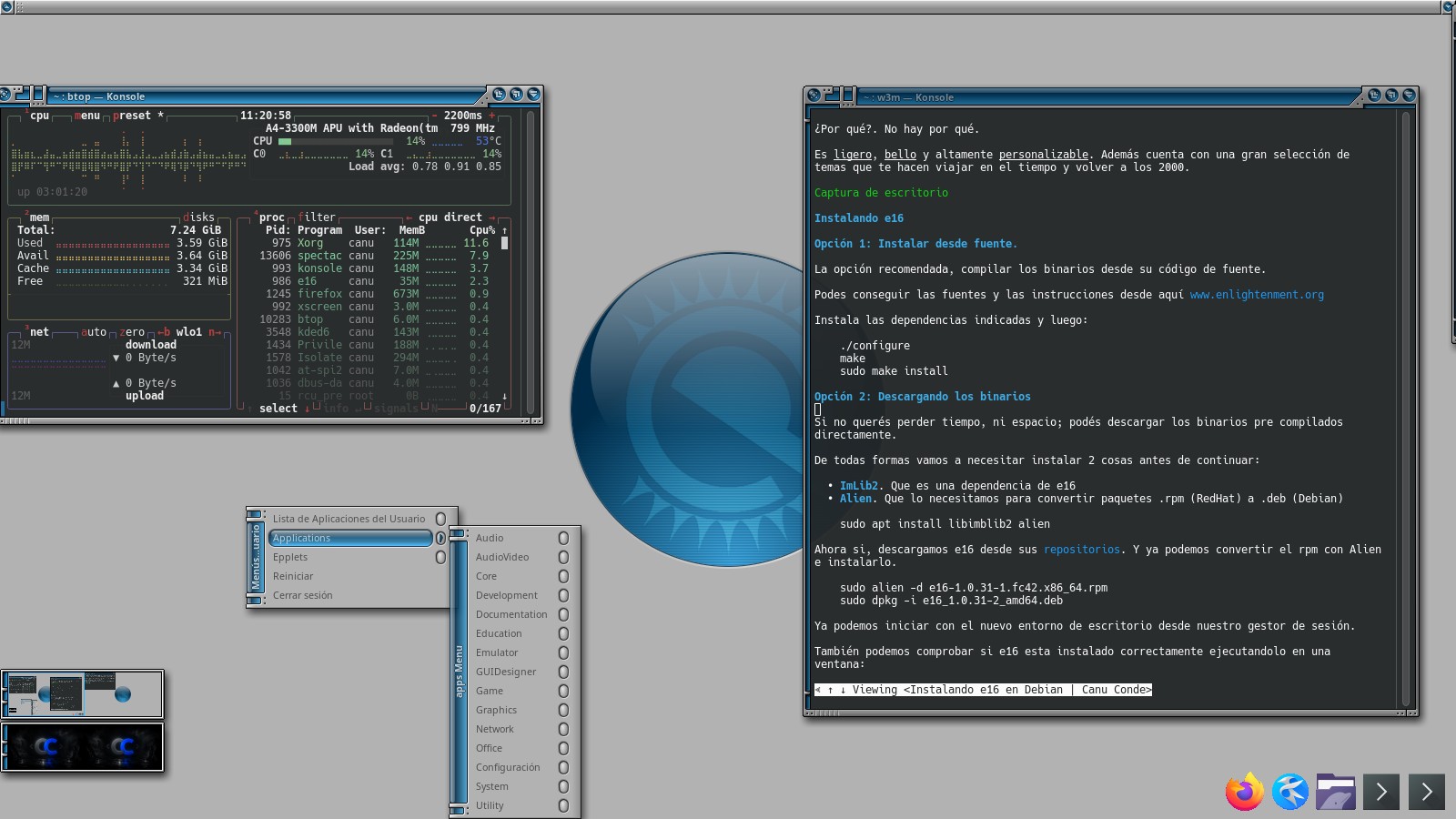
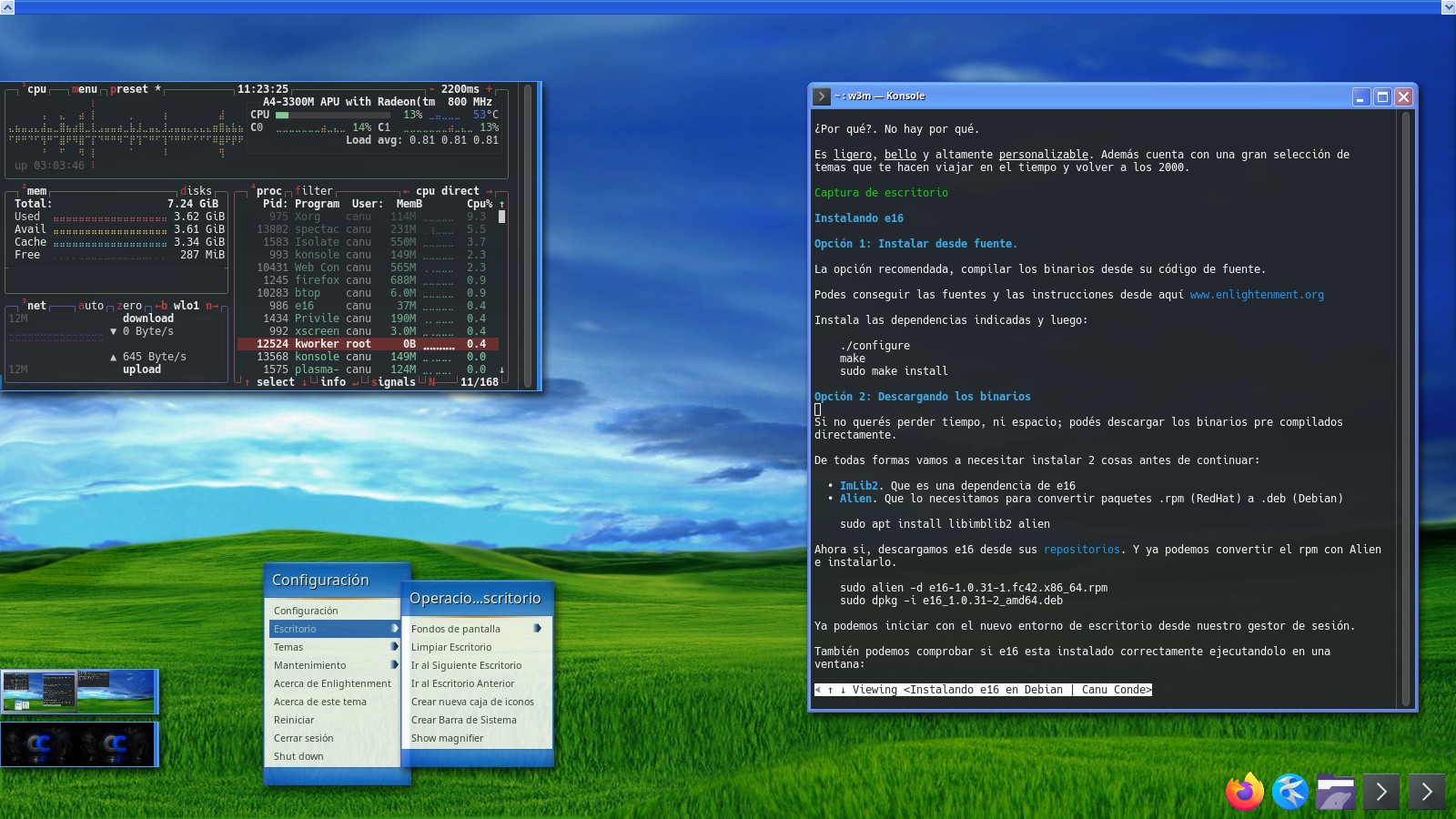
~/.e16/themesHere are two suggestions:
| 23ozGlass | XPe |
|---|---|
 |  |
Side note
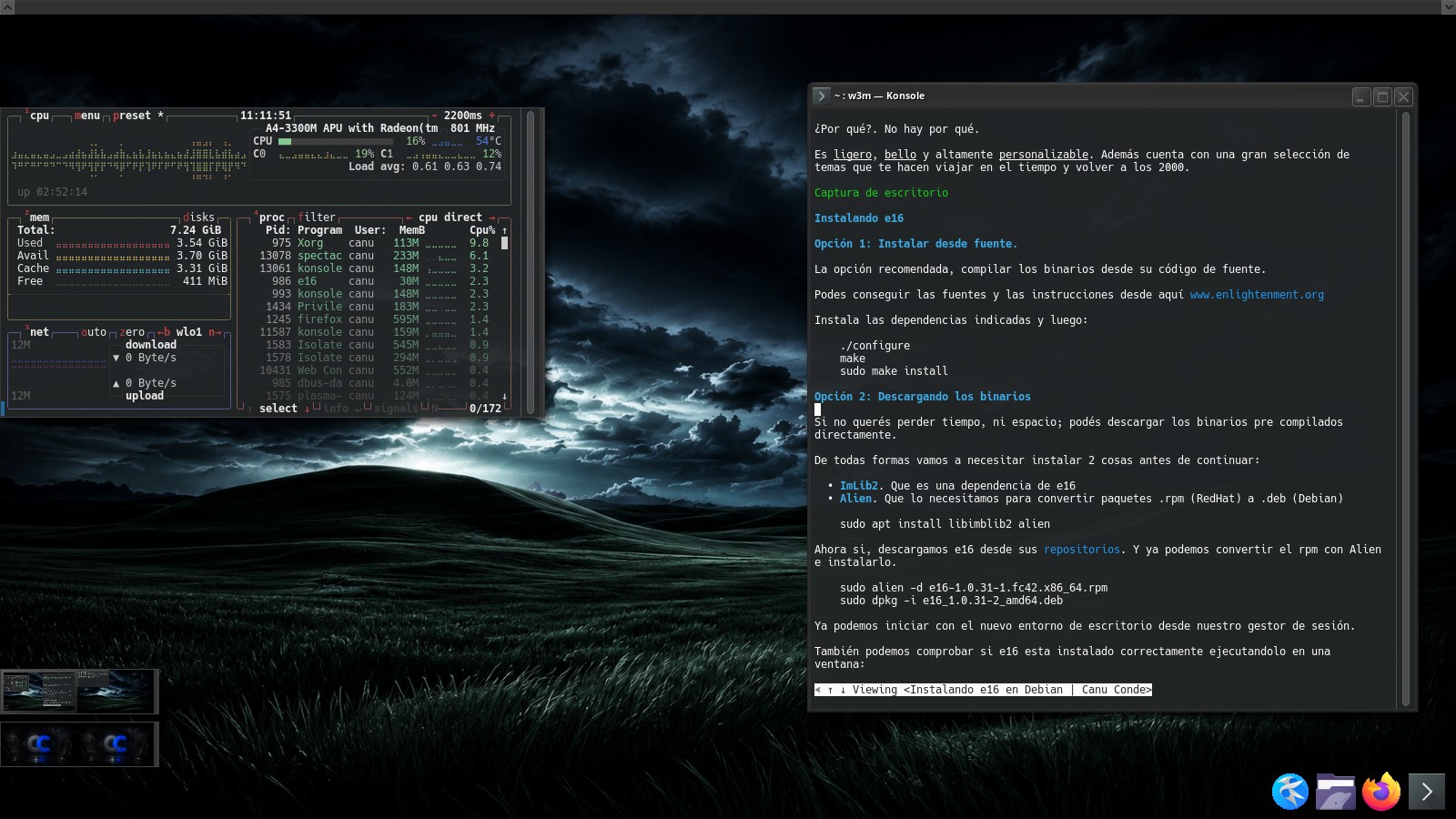
At the time of writing this article, I am using the XPe theme. Since I wanted it to blend better with Plasma's Breeze Dark appearance, I wrote a small script to desaturate all theme images.
#!/bin/bash
find . -name "*.png" | while read img; do
    magick "$img" -modulate 65,0,100 "$img"
done
Basically, it recursively scans a directory and modifies PNG images by reducing brightness to 65% and saturation to 0%.
I ran this script inside:
~/.e16/themes/XPeHere is the result and the modified theme.
| XPe Dark |
|---|
 |
You're welcome.
Keyboard shortcuts
With e16, we don't need menus or toolbars. Everything can be done through keyboard shortcuts.
Here are some basic ones:
- Shift + Alt + Arrow Keys — Switch desktop areas.
- Ctrl + Alt + Arrow Keys — Switch virtual desktops.
- Ctrl + Alt + X — Close an application. Ctrl + Alt + K — Kill the process.
- Ctrl + Alt + I — Iconify a window.
- Ctrl + Alt + F — Toggle fullscreen mode.
Let's add some custom shortcuts.
First, copy the default bindings file into your personal configuration directory:
### Depending on how e16 was installed,
### the file may be located under:
### /usr/local/share or /usr/share
cp /usr/share/e16/config/bindings.cfg ~/.e16
Now edit ~/.e16/bindings.cfg and add your own shortcuts.
For example:
KeyDown 4 1 exec konsoleThis launches Konsole using Super_L (4) + 1.
Or:
KeyDown - XF86AudioRaiseVolume exec amixer set Master 5%+This increases the volume by 5% using ALSA.
If you need to discover special key names like the one above, run xev, press the desired keyboard key, mouse button, or gamepad button, and inspect the output.
(xev is included in the x11-utils package.)
Session
You will probably want to start programs automatically or perform certain actions when your session begins.
To do that, create three directories inside ~/.e16:
~/
├── .e16/
    ├── Init/
    ├── Start/
    ├── Stop/
You can place scripts inside these directories and they will be executed automatically:
- At session startup if they are inside
Init. - Every time e16 starts or restarts if they are inside
Start. - When the session ends if they are inside
Stop.
For example, let's create a file called kdeconnect.sh inside Start.
First make it executable:
chmod +x ~/.e16/Start/kdeconnect.shThen edit it:
#!/bin/bash
kdeconnectd --replace &
This will start the KDE Connect daemon every time e16 starts or restarts.
Integration
Reboot and shutdown
By default, the user menu only allows you to log out.
You can enable Reboot and Shutdown options through the configuration menu (right-click on the desktop) by enabling them in the session settings.
The options will appear, but they will probably not work yet.
To fix this, edit ~/.e16/e_config--0.0.cfg and modify the following lines:
misc.session.cmd_reboot = systemctl reboot
misc.session.cmd_halt = systemctl poweroff
Qt and GTK integration
The final step is configuring environment variables so that GTK and Qt applications correctly inherit your preferred settings.
If you are using xinit, edit ~/.xinitrc (create it if it doesn't exist) and add:
export GTK_THEME=Breeze-Dark
export QT_QPA_PLATFORMTHEME=qt6ct
export XDG_CURRENT_DESKTOP=Enlightenment
dbus-run-session starte16
This allows applications to pick up your desktop settings correctly.
You can also do this from the X11 session file:
nano /usr/share/xsessions/e16-session.desktopAdd the variables before the exec command.
In my case, I modified it as follows:
export XDG_MENU_PREFIX=plasma-
export XDG_SESSION_DESKTOP=KDE
export XDG_SESSION_TYPE=x11
export XDG_CURRENT_DESKTOP=KDE
export DESKTOP_SESSION=plasmax11
export KDE_SESSION_UID=1000
export QT_ACCESSIBILITY=1
export KDE_SESSION_VERSION=6

export KDE_FULL_SESSION=true
export KDE_APPLICATIONS_AS_SCOPE=1

dbus-run-session starte16
This gives me full KDE Plasma integration while still using e16, allowing me to use systemsettings to configure the visual appearance and the rest of the system.
Conclusion
e16 is not the most modern desktop environment, nor the most popular, nor the one with the most features. Yet it remains one of the most enjoyable environments to use.
It is lightweight, fast, stable, and has a unique aesthetic that feels frozen in a time when desktop environments had a personality of their own. Since it is built around simple configuration files, it can be adapted precisely to your needs without relying on complex tools.
It may not be for everyone. But if you enjoy Linux, customizing your system, and keeping old software alive long after its heyday, it is definitely worth giving e16 a try.
So there you have it. Welcome to the year 2000.